App guide
Pegasus Atlas, screen by screen.
Everything the mobile app does, in the order you will meet it — from scanning the install QR code to pulling a trip report on the phone. Same login as the web portal.
Step 1
Installing the app and signing in
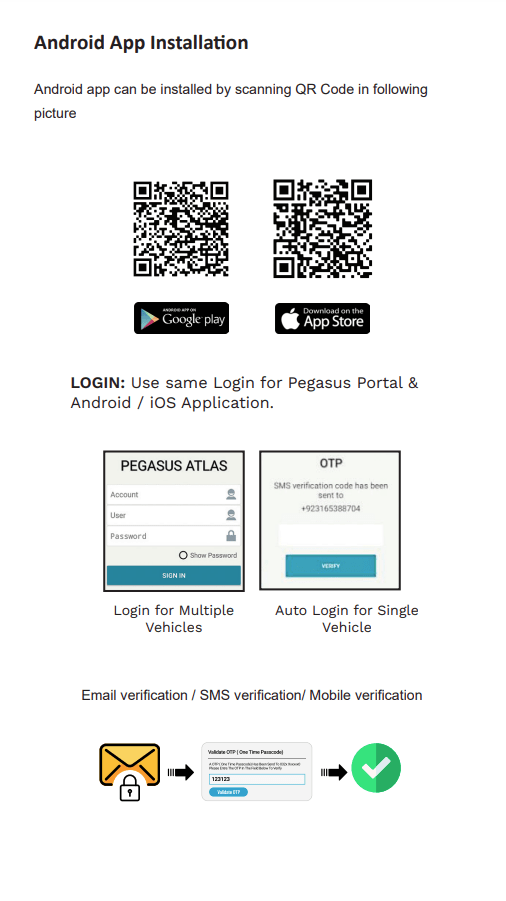
Pegasus Atlas is on both stores, and you sign in with the same credentials you use for the Pegasus web portal — there is no separate app account to create. Accounts covering multiple vehicles use the standard account / user / password sign-in; single-vehicle accounts can auto-login with an SMS one-time passcode. Verification is available by email, SMS or mobile.
Step 2
The main menu
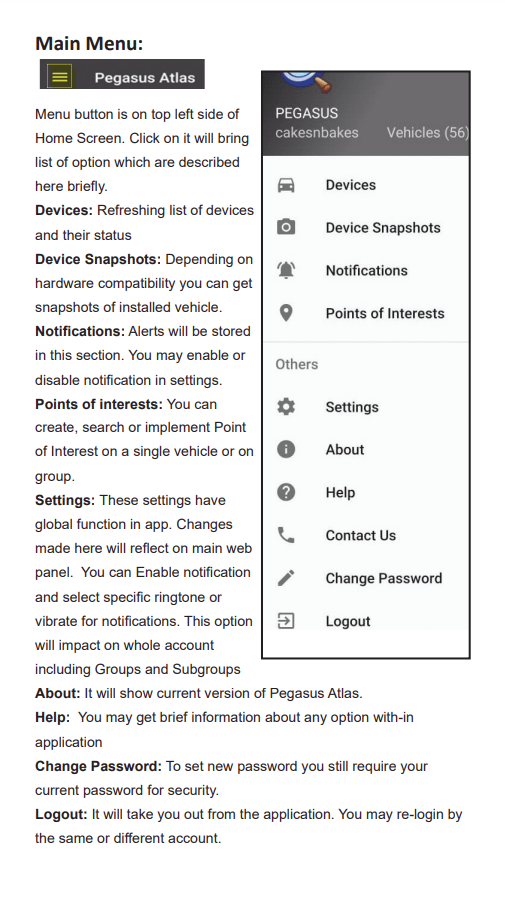
The menu button sits at the top left of the home screen. It opens Devices (a refreshing list of your vehicles and their status), Device Snapshots, Notifications, and Points of Interest, plus Settings, About, Help, Contact Us, Change Password and Logout. Settings are global: changes made here are reflected on the main web panel and apply across the whole account, including groups and sub-groups.
Step 3
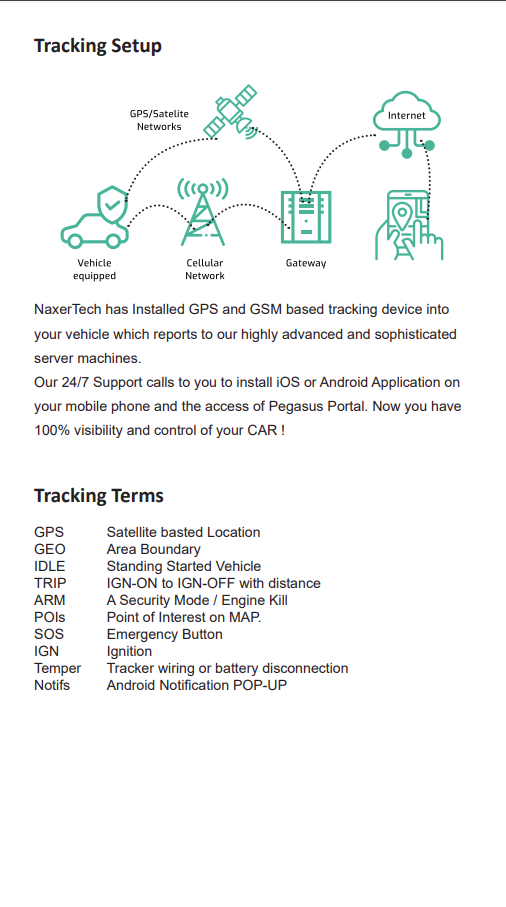
Setting up tracking
How to get a device reporting and visible on the map, and what each status indicator means before you start relying on the data.
Step 4
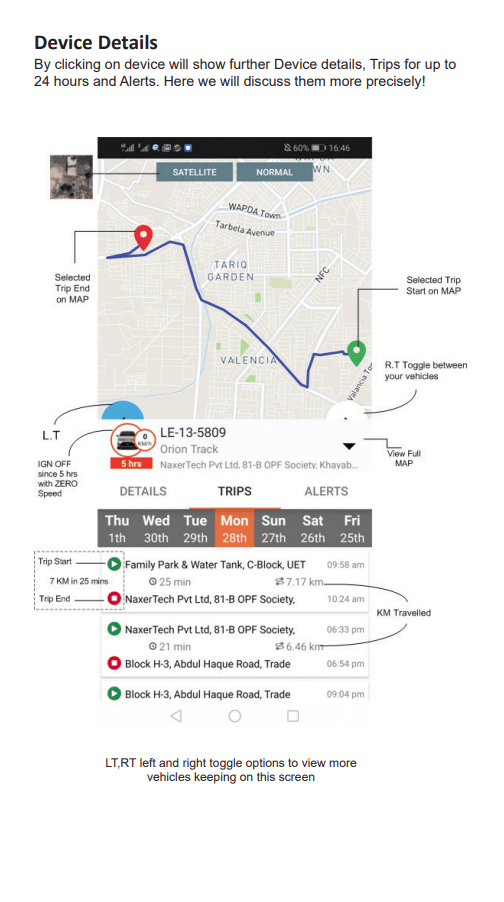
Map view, trips and alerts
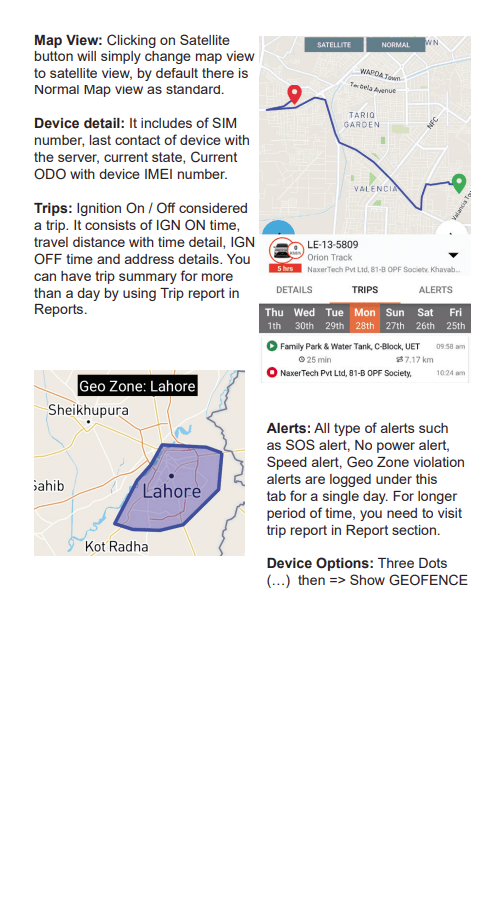
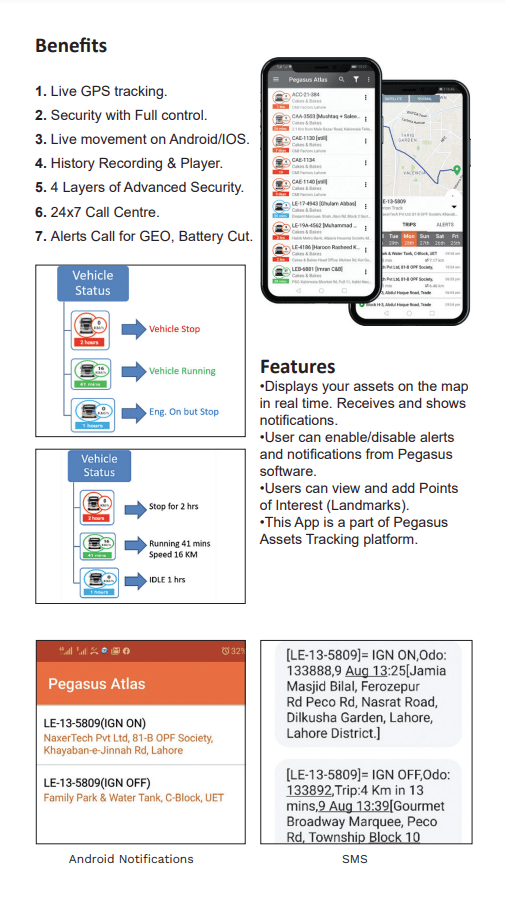
The satellite button switches from the default normal map to satellite view. Device detail shows the SIM number, last contact with the server, current state, current odometer and the device IMEI. Trips are bounded by ignition on and off, and list travel distance, timings and address detail — use the Trip report in Reports for periods longer than a day. The Alerts tab logs SOS, no-power, speed and geo-zone violations for a single day.
Step 5
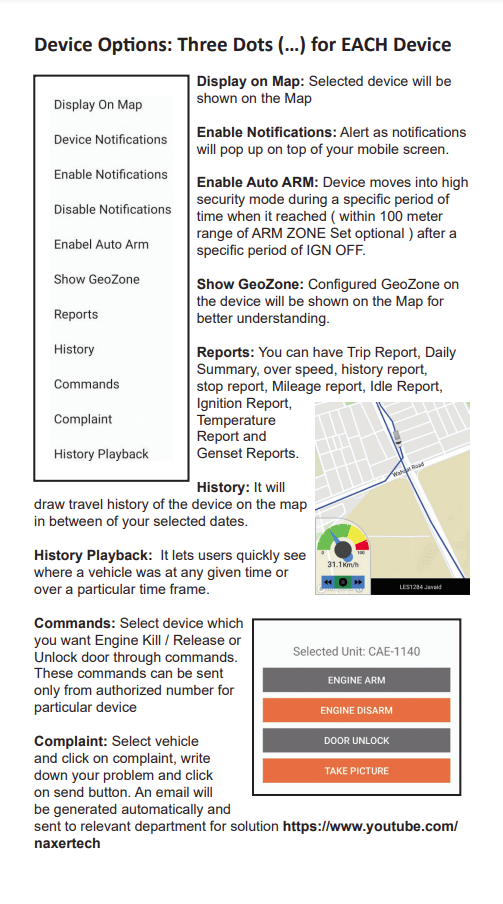
Device options
Per-device controls reached from the three-dot menu, including showing the geofence for that vehicle.
Step 6
Device details
The full record behind each vehicle — identity, connectivity and current state — so you can tell a reporting problem from a vehicle problem.
Step 7
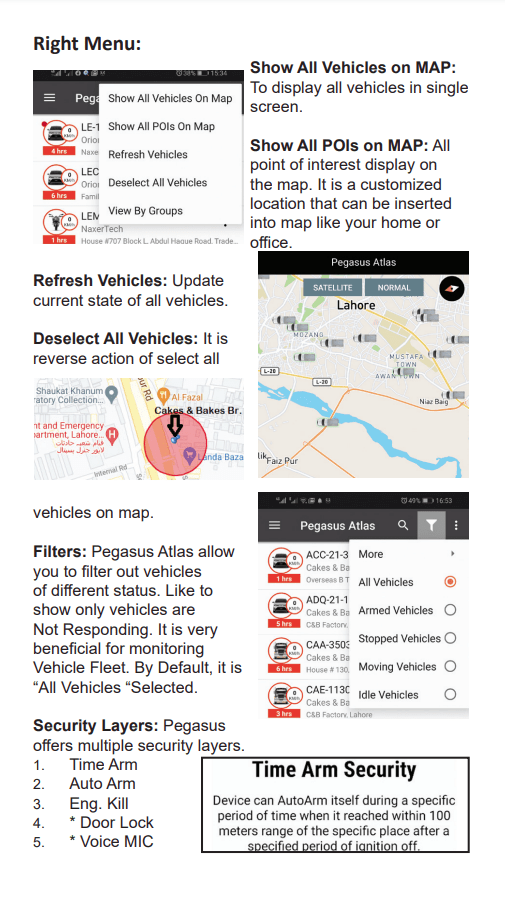
The right-hand menu
Filtering, sorting and quick actions across the device list.
Step 8
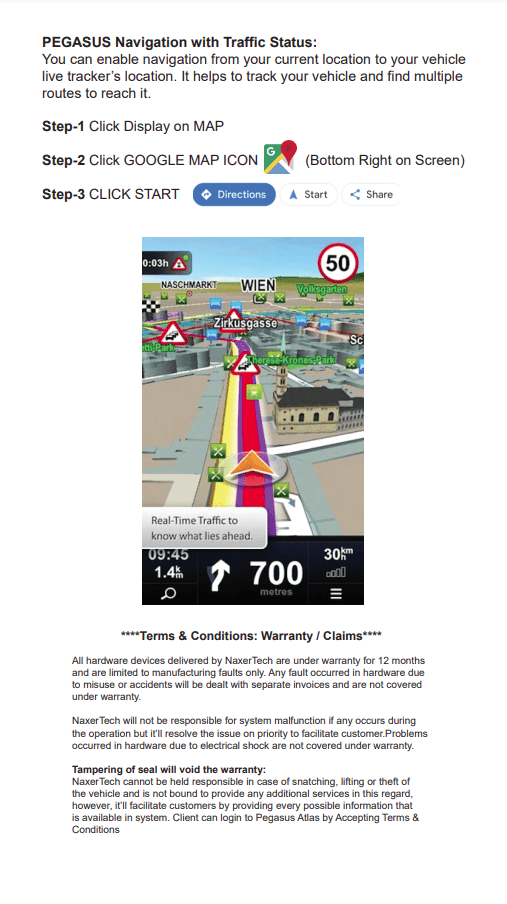
Navigating Pegasus
How the app's screens relate to each other, and where each function lives relative to the web portal.
Step 9
Reports in the app
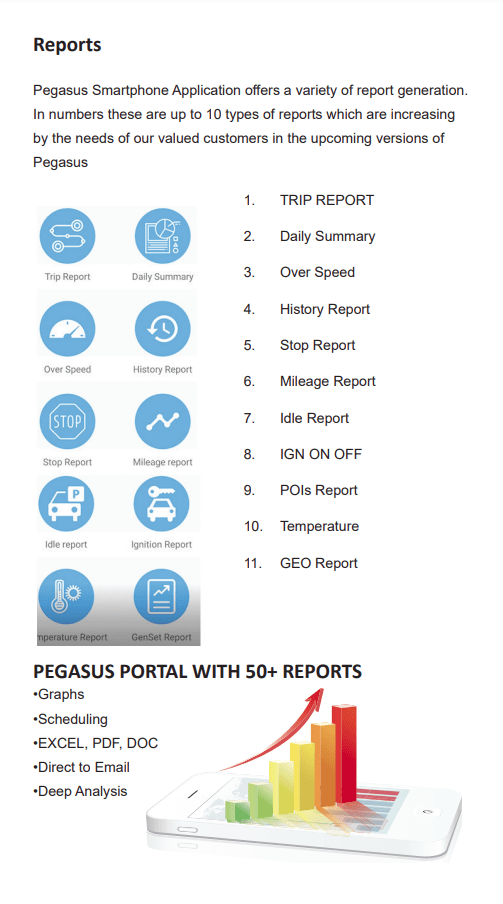
The app generates around ten report types directly on the phone: Trip, Daily Summary, Over Speed, History, Stop, Mileage, Idle, Ignition On/Off, POIs, Temperature and Geo. The full Pegasus portal carries 50+ reports with graphs, scheduling, Excel/PDF/DOC export, direct-to-email delivery and deeper analysis.
Step 10
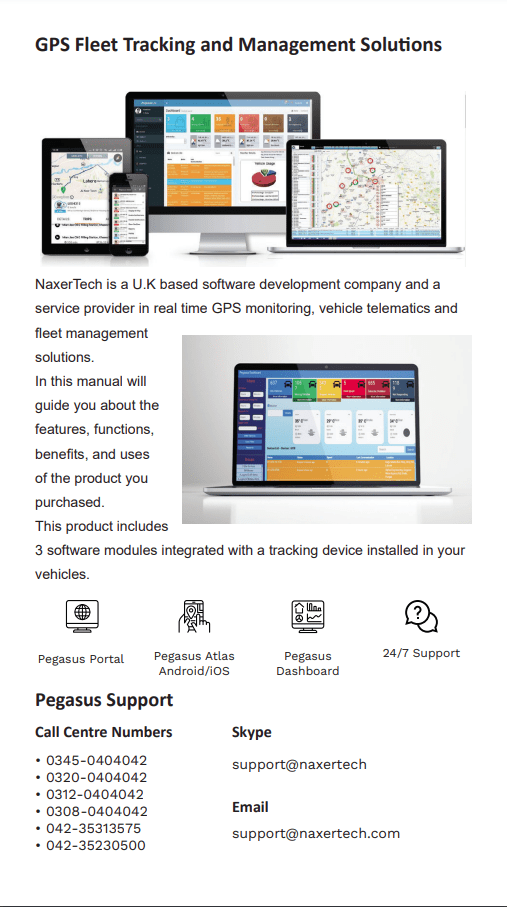
Fleet tracking overview
Watching a whole fleet rather than a single vehicle, and what the overview screen shows at a glance.
Step 11
What the app gives you
A summary of what moves from the desk to the phone once the app is in use.
Full PDF manuals
The complete Pegasus Atlas handbook and the Pegasus web portal user guide.
Go to downloadsThe web platform
Everything the app does, plus the 50+ report library and the notification engine.
Explore PegasusStuck on something?
Support runs alongside the 24/7 control room. Ask us rather than guessing.
Contact supportNot using the app yet?
It ships free with every Pegasus account. Get a quote and we'll set your users up the same day.